














Thanks for vising my blog post
Ready to Exclude Internal Traffic from Your Website and Boost Data Accuracy?

Reach out for tailored GA4 setup and expert assistance.
Loading
Scale Campaigns with Accurate Tracking — Get a FREE Audit
56/ A, Mirpur -10, Dhaka, Bangladesh
dataexpertpro@gmail.com
+8801708001005
Stop Skewing Your Reports:
A complete guide to filter internal traffic, ensuring your data is accurate and actionable while enabling smarter marketing decisions.
Google Analytics ⑊ Exclude Internal Traffic in GA4
Excluding internal traffic from Google Analytics is essential for maintaining clean, accurate data—but the process can be tricky without the right guidance. In this guide, you’ll learn how to properly filter out internal sessions so your metrics reflect only genuine external user behavior. Whether you’re using Universal Analytics or Google Analytics 4 (GA4), we’ll walk you through proven methods to eliminate data noise and improve decision-making accuracy.
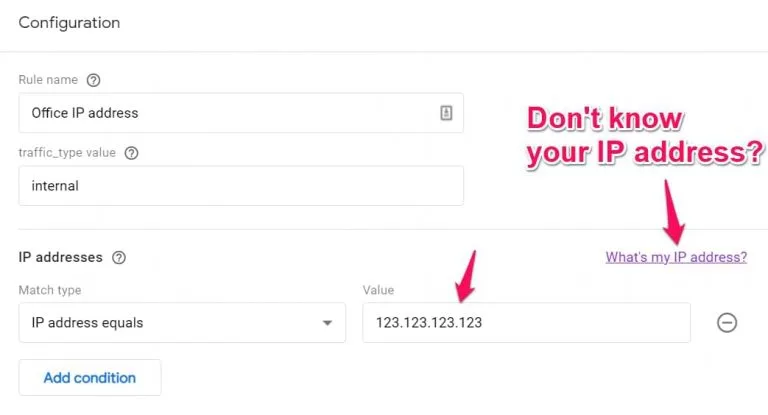
Accurate identification of internal traffic is the first step to maintaining clean analytics data. The most common approach is IP address filtering, where you designate specific IP addresses or ranges associated with your organization as internal.
Google Analytics offers flexible options for defining internal traffic using IP conditions such as ‘equals,’ ‘begins with,’ ‘ends with,’ ‘contains,’ or ‘is in range.’ You can also assign a “traffic_type” parameter with a value like “Internal,” which helps reports automatically exclude this traffic type.
It’s crucial to precisely identify only genuine internal sources. External traffic from campaigns, backlinks, paid ads, or organic searches should never be mistakenly excluded. Proper setup ensures your data reflects actual user engagement without internal visits clouding the picture. Regularly updating and verifying your IP filters is equally important to prevent inaccurate tracking and maintain the integrity of your analytics over time.
Internal traffic can significantly distort your Google Analytics metrics. For instance, the average time spent on pages may be inflated because internal users, such as developers, spend more time on certain areas of your site than typical visitors. This creates a false impression of higher engagement.
Such distortions risk leading businesses to misguided conclusions and ineffective strategies. Relying on skewed engagement data may result in overestimating user interest or making poor marketing decisions.
Therefore, excluding internal traffic—especially in GA4 reports—is critical for preserving data integrity and ensuring that your analysis reflects real user behavior.
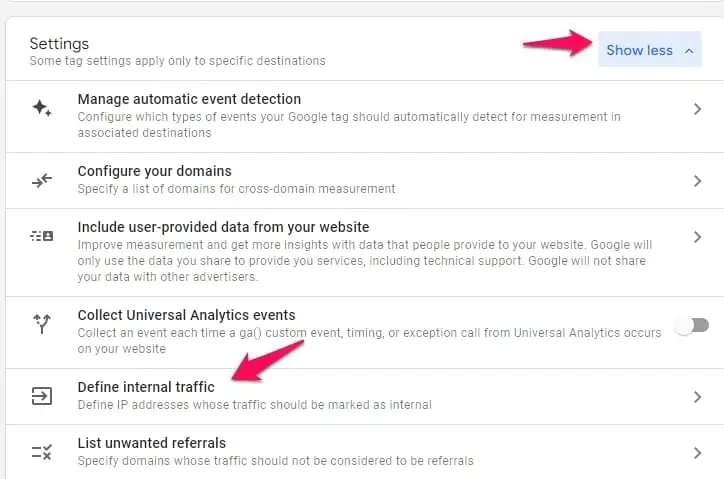
Let’s start with the classic. This might work if not many people are involved in running a business, and you can easily exclude their hits by their IP addresses. This method does not work well if you have to enter many different IP addresses or if some IP addresses are not static (read: regularly changing). Or maybe your colleagues use VPNs often.
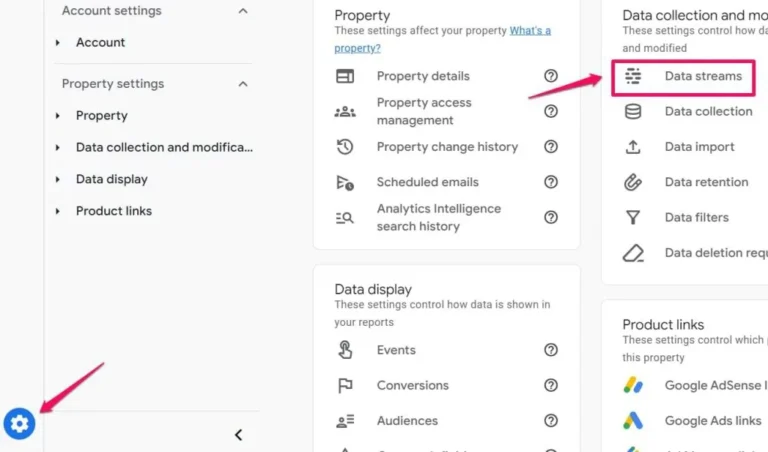
In Google Analytics 4, go to Admin > Data Streams and select your website stream.
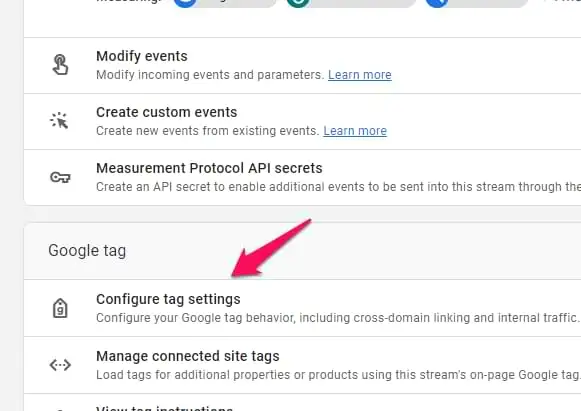
Then click Configure tag settings:
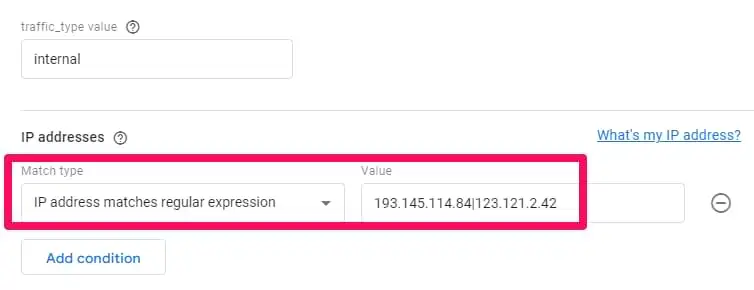
You can create separate rules for each IP if you are working with multiple IPs. Or you can create a regular expression and include multiple IP addresses there, like in the example below:
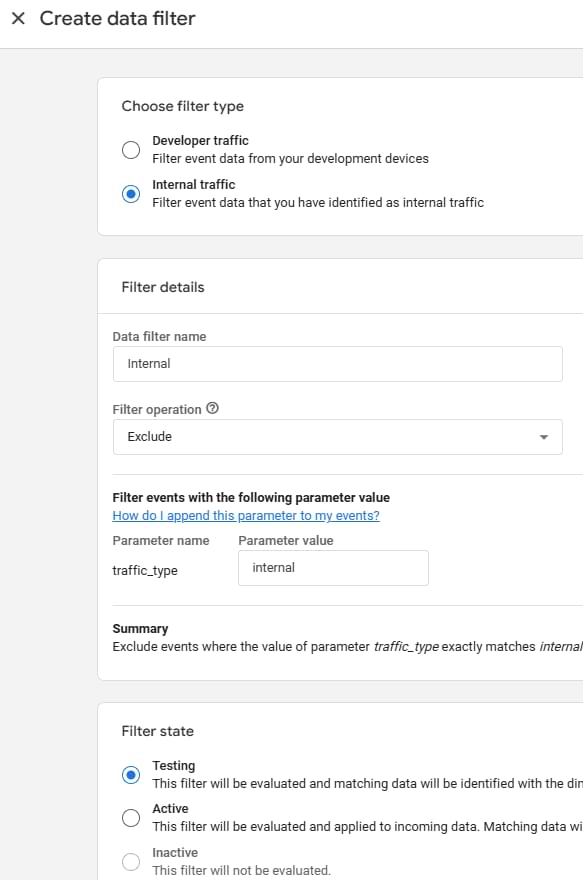
You can always enter “internal” in the traffic_type value field to simplify things. Then it will be enough to have one Internal Traffic filter in your GA property.
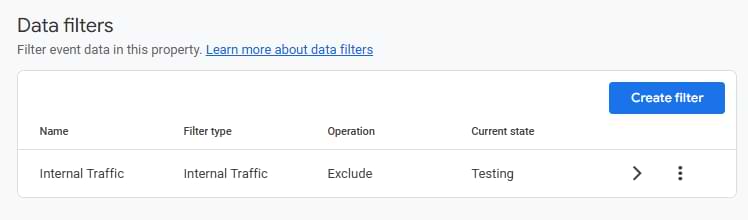
Even though Google Analytics contains the “internal” filter right out of the box, it’s disabled by default. We will activate it a bit later. But now, you can just check whether you have that filter.
In this list, you should see the Internal Traffic filter. If its current state is Testing, proceed to the next step.
If you don’t see any filters at all, create one. Click “Create filter” and enter the following settings:
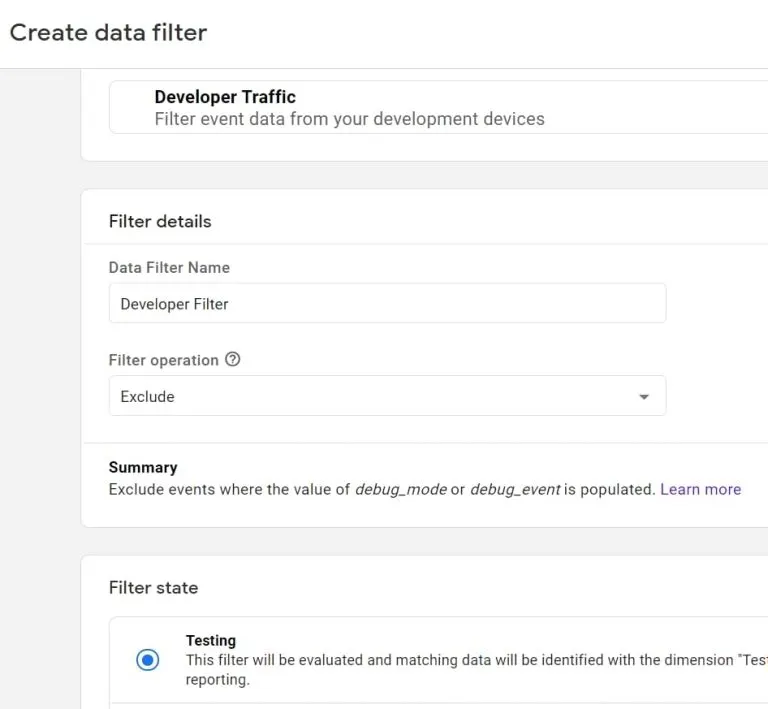
In GA4, go to Admin > Data Filters > Create Filter. Select Developer Traffic. Enter the following settings:
You can enter any name in the “Data Filter Name” field. Set this filter to Testing (for now). Save it.
This is where the magic will happen. In one of the previous chapters, I mentioned that GA4 automatically adds a tt=internal (traffic_type) parameter to all hits if they come from one of your internal IP addresses.
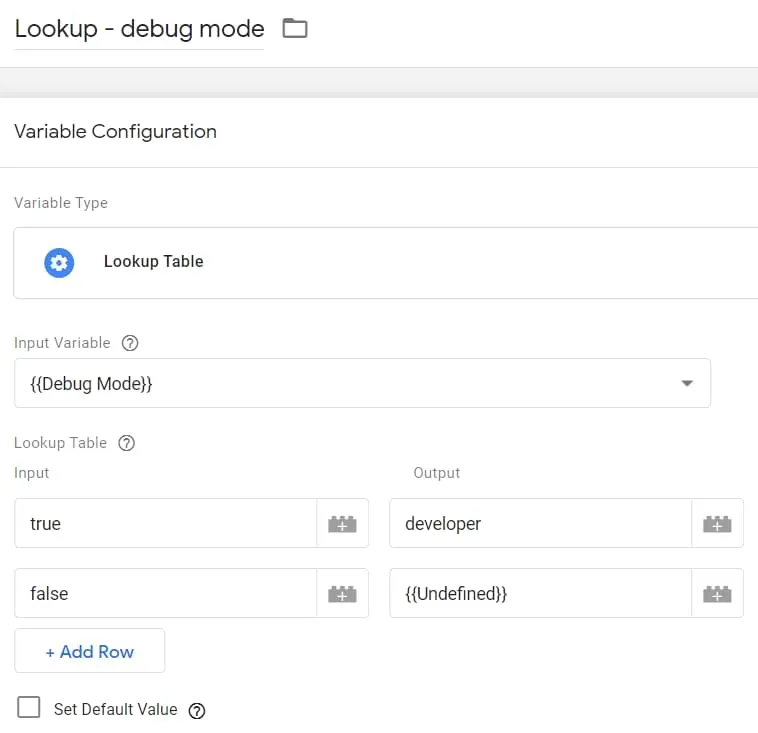
What we are going to do is to create a Lookup table variable that manipulates the value of the parameter. If we have the GTM preview mode enabled, then we will change the tt’s value to developer (or anything else). But if the Debug Mode is disabled, then we will not do any modifications and let the GA4 handle this.
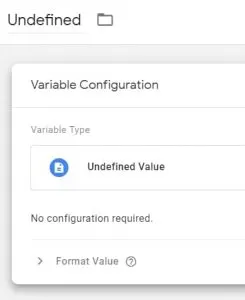
First, create an Undefined variable. In GTM, go to Variables > New > Undefined and save the variable (its name can be, well, Undefined).
Now, let’s go to Variables > Configure (in the Built-in variables section) and enable the Debug Mode variable.
Finally, let’s go to Variables > New > Lookup table and enter the following settings:
Save the variable.
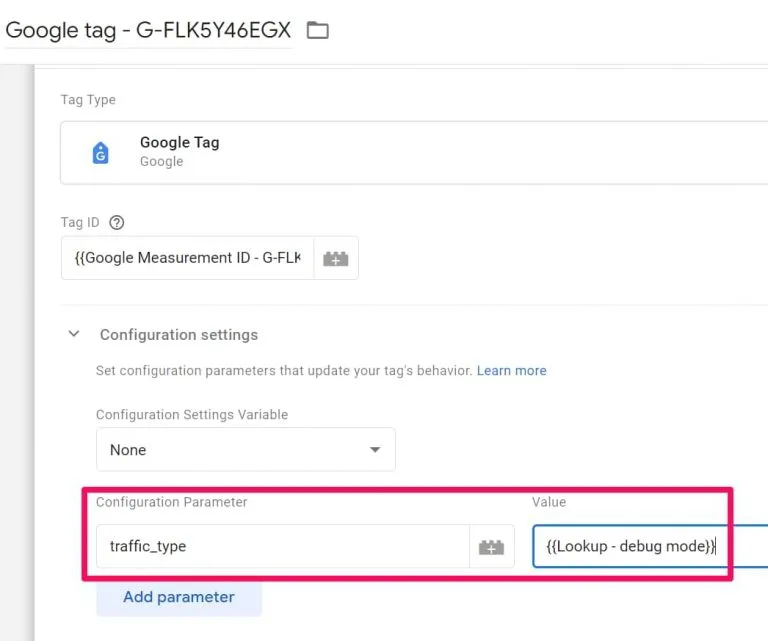
Finally, go to your Google tag and enter the following parameter: traffic_type. And its value should be the lookup table you’ve just created.
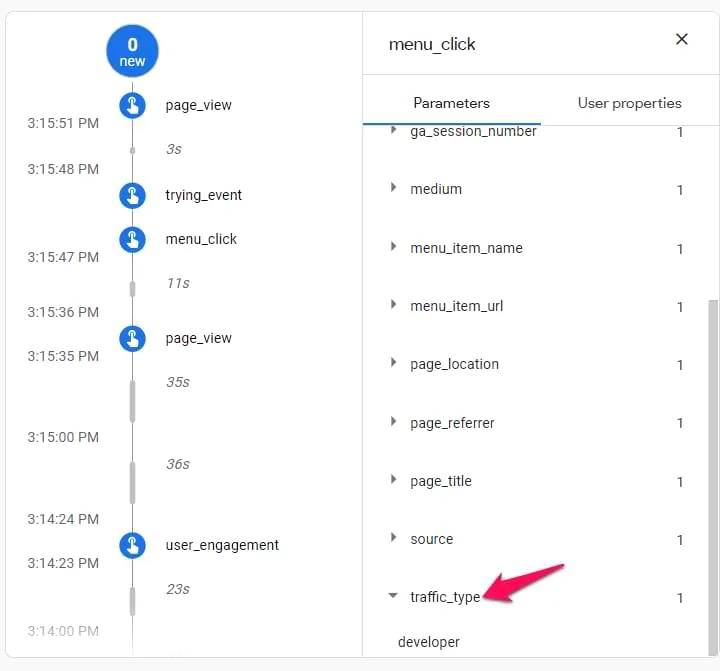
Now, it’s time to test. Enable GTM’s preview mode. And go to your website (obviously, you should be browsing from the IP address that is configured in the Internal Traffic section of your Data Stream). Go to the DebugView of GA4.
First of all, you should still be seeing hits coming from your device. Click on any event in the event stream and check the parameter traffic_type. Its value should be developer.
Also, in that same event, you should see the Debug Mode parameter too.
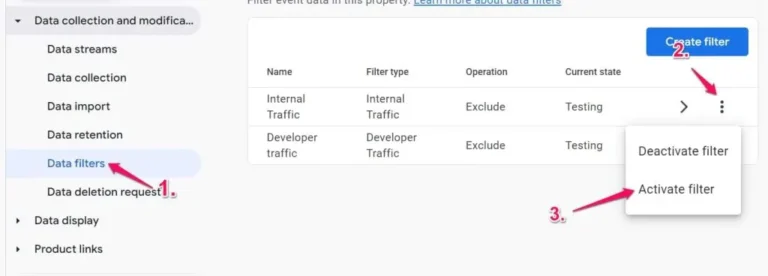
The last step is to activate both filters. Go to Admin (in GA) > Data Filters and set both triggers (Internal traffic and developer traffic) to active. You can do that by opening each filter, changing its Filter state, and then save the changes. Or you can just activate them from the list:
Now, do the test once again.
While any filter is in the testing mode we can use it to segment reports without losing any of the collected data.
Now any report will have an additional chart showing only internal or all traffic excluding internal.
Note that even if the Debug traffic is excluded you still will be able to see and debug your hits from preview mode in DebugView.
Excluding internal traffic is essential for accurate Google Analytics reporting. From IP filtering and cookie-based methods to advanced data layer setups, each strategy helps ensure your metrics reflect real user behavior—not internal activity. To maintain data integrity, test thoroughly, monitor regularly, and update as needed. The goal is simple: clear, reliable insights that drive smarter decisions.


Ready to Exclude Internal Traffic from Your Website and Boost Data Accuracy?

Reach out for tailored GA4 setup and expert assistance.